
Why So Many Users Ask How to Install IBO Player

🎯 Looking for the Best IPTV Provider in 2026?
Try IPTVFOT, the premium IPTV 2026 solution:
✅ HD / 4K live channels
✅ Massive VOD library
✅ Stable servers – 24/7 support
🎁 24H Free Trial Available
👉 Contact us on WhatsApp for instant activation
As IPTV continues to replace traditional cable TV, users are constantly looking for simple, fast, and reliable IPTV players. One name that appears frequently in IPTV discussions is IBO Player. Many users discover IBO Player for the first time and immediately ask the same question:
How do you install IBO Player on different devices?
In 2026, IBO Player has become one of the most popular IPTV players for Smart TVs and streaming devices. It is known for its clean interface, good performance, and compatibility with many IPTV services. However, since IBO Player works differently from traditional IPTV apps, many beginners find the installation and activation process confusing.
This article explains what IBO Player is, how it works, and provides step-by-step installation guides for all major devices, including Smart TVs, Android, Firestick, iOS, and computers.
What Is IBO Player?
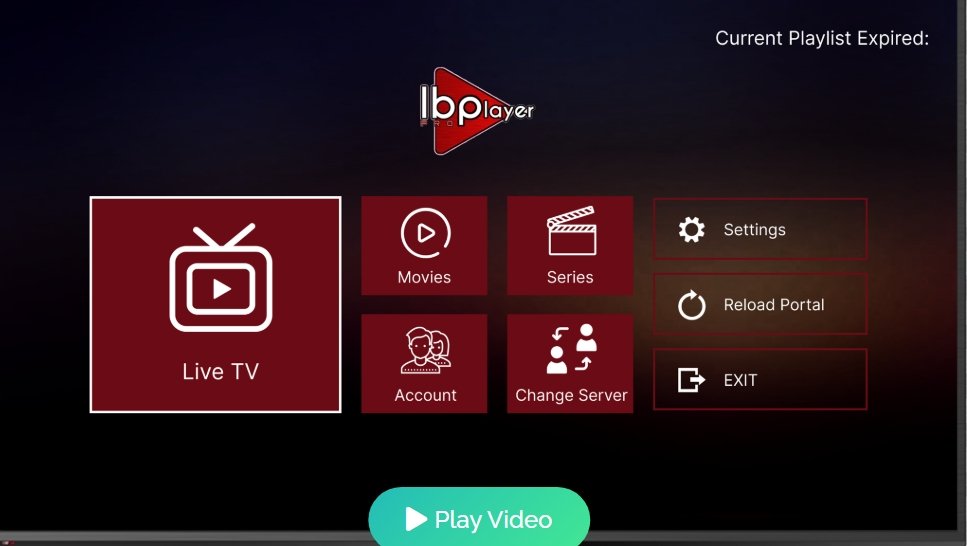
IBO Player is an IPTV player application. It does not provide TV channels or content by itself. Instead, it allows users to load IPTV playlists provided by an IPTV service provider.
Important points to understand:
- IBO Player is only a media player
- You must already have an IPTV subscription
- Channels appear only after adding a playlist or login details
IBO Player is especially popular on Smart TVs where other IPTV apps may not be available.
How Does IBO Player Work?
IBO Player works by connecting to IPTV servers using:
- M3U playlist links
- Xtream Codes login details (via supported methods)
Once the playlist is added and activated, IBO Player displays:
- Live TV channels
- Movies and series (VOD)
- Categories and favorites
The app itself remains empty until you add IPTV data.
Devices That Support IBO Player
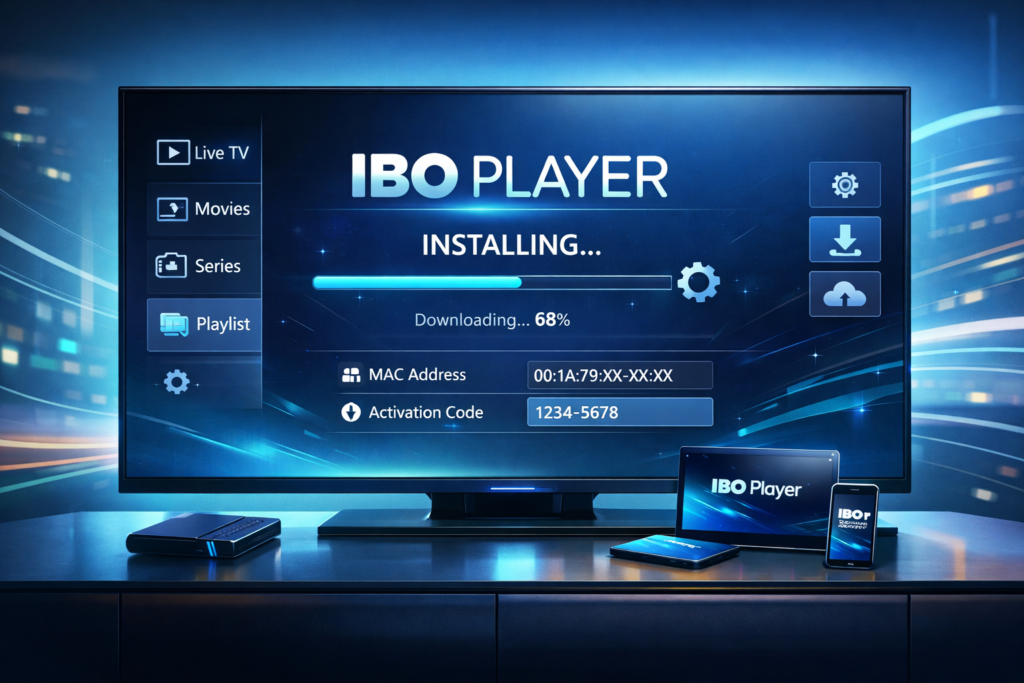
IBO Player is compatible with many devices in 2026.
Supported platforms include:
- Samsung Smart TV (Tizen OS)
- LG Smart TV (webOS)
- Android TV
- Android phones & tablets
- Amazon Firestick (via Android version)
- iOS devices (limited versions)
- PC (via alternative methods)
Each device has a slightly different installation process.
How to Install IBO Player on Samsung Smart TV (Step-by-Step)
Samsung Smart TVs are one of the main reasons IBO Player is so popular.
Step 1: Turn On Your Samsung Smart TV
Make sure your TV is connected to the internet.
Step 2: Open Samsung App Store
From the home screen, open the Samsung Smart Hub and go to Apps.
Step 3: Search for IBO Player
Type IBO Player in the search bar.
Step 4: Install the App
Select IBO Player and click Install.
Step 5: Launch IBO Player
Once installed, open the app. You will see:
- MAC address
- Device key
These are needed for activation.
How to Activate IBO Player on Samsung TV
IBO Player requires activation.
Activation Process:
- Visit the official IBO Player activation page (provided inside the app)
- Enter your TV’s MAC address and device key
- Upload your IPTV playlist or login details
- Save changes
- Restart IBO Player on your TV
After activation, channels will appear.
How to Install IBO Player on LG Smart TV
LG Smart TVs also support IBO Player.
Step-by-Step Installation:
- Turn on your LG Smart TV
- Open LG Content Store
- Search for IBO Player
- Install the app
- Open IBO Player to view the MAC address
Activation is done the same way as Samsung TVs.
How to Install IBO Player on Android TV
Android TVs allow easy installation.
Steps:
- Open Google Play Store
- Search for IBO Player
- Install the app
- Launch IBO Player
- Note the MAC address or login screen
- Add IPTV playlist via activation panel
Android TV users enjoy smooth performance with IBO Player.
How to Install IBO Player on Android Phones & Tablets
IBO Player is also available for Android mobile devices.
Steps:
- Open Google Play Store
- Search for IBO Player
- Install the app
- Open the app
- Add IPTV playlist via settings or activation portal
Mobile installation is quick and convenient.
How to Install IBO Player on Amazon Firestick
Firestick does not have IBO Player directly in the Amazon Store, but you can install it manually.
Steps:
- Go to Settings > My Fire TV > Developer Options
- Enable Apps from Unknown Sources
- Install Downloader app
- Download the Android version of IBO Player
- Install and open the app
- Add IPTV playlist
Firestick users often choose IBO Player for Smart TV-like experiences.
How to Install IBO Player on iPhone or iPad
IBO Player support on iOS is limited.
Options include:
- Using compatible IPTV apps instead
- Screen mirroring from another device
- Using Smart TV or Firestick for best results
IBO Player works best on TVs rather than iOS devices.
How to Use IBO Player on PC or Laptop
IBO Player does not have an official PC version.
Alternative solutions:
- Use Android emulators
- Use IPTV Smarters or VLC
- Stream to TV instead
Most users prefer IBO Player on Smart TVs.
How to Add IPTV Playlist to IBO Player
After installation, IBO Player requires IPTV data.
Common Methods:
- Upload M3U playlist URL
- Use Xtream Codes (if supported)
- Assign playlist via activation portal
Without this step, IBO Player will remain empty.
Is IBO Player Free?
IBO Player usually includes:
- A free trial period
- A one-time activation fee (depending on region)
Pricing details are shown during activation.
Common Problems When Installing IBO Player
App Not Showing Channels
- Playlist not added
- Activation not completed
Buffering Issues
- Internet speed too low
- IPTV provider instability
App Crashing
- Restart TV
- Reinstall app
- Update TV software
Most issues are easy to fix.
Best Internet Speed for IBO Player
Recommended speeds:
- SD: 5 Mbps
- HD: 10 Mbps
- Full HD: 15–20 Mbps
- Multiple devices: 25 Mbps+
A wired connection is recommended for Smart TVs.
IBO Player vs Other IPTV Players
Compared to other IPTV apps, IBO Player offers:
- Better Smart TV support
- Clean and simple interface
- Stable performance
It is ideal for users who watch IPTV mainly on TV screens.
Security & Privacy Tips When Using IBO Player
- Use trusted IPTV providers
- Protect your activation details
- Avoid public Wi-Fi
- Keep TV firmware updated
Responsible usage ensures long-term stability.
Why IPTV Providers Recommend IBO Player
Many IPTV providers recommend IBO Player because:
- It works well on Smart TVs
- It is easy for beginners
- It supports large playlists
- It requires minimal setup
This makes it a popular choice in 2026.
Future of IBO Player in 2026 and Beyond
IBO Player continues to improve with:
- Better interface updates
- Faster loading times
- Improved playlist handling
- More device compatibility
It remains a strong IPTV player choice.
Final Conclusion: How to Install IBO Player on Different Devices
Installing IBO Player on different devices in 2026 is straightforward once you understand how it works. Whether you are using a Samsung Smart TV, LG TV, Android TV, or Firestick, IBO Player offers a reliable and user-friendly IPTV viewing experience.
As long as you have a valid IPTV subscription and follow the correct installation and activation steps, IBO Player can turn your device into a powerful IPTV platform.